Fill in a form with fields
- Open the PDF: go to pdfcraft.run/editor and drag the file onto the window, or click Open.
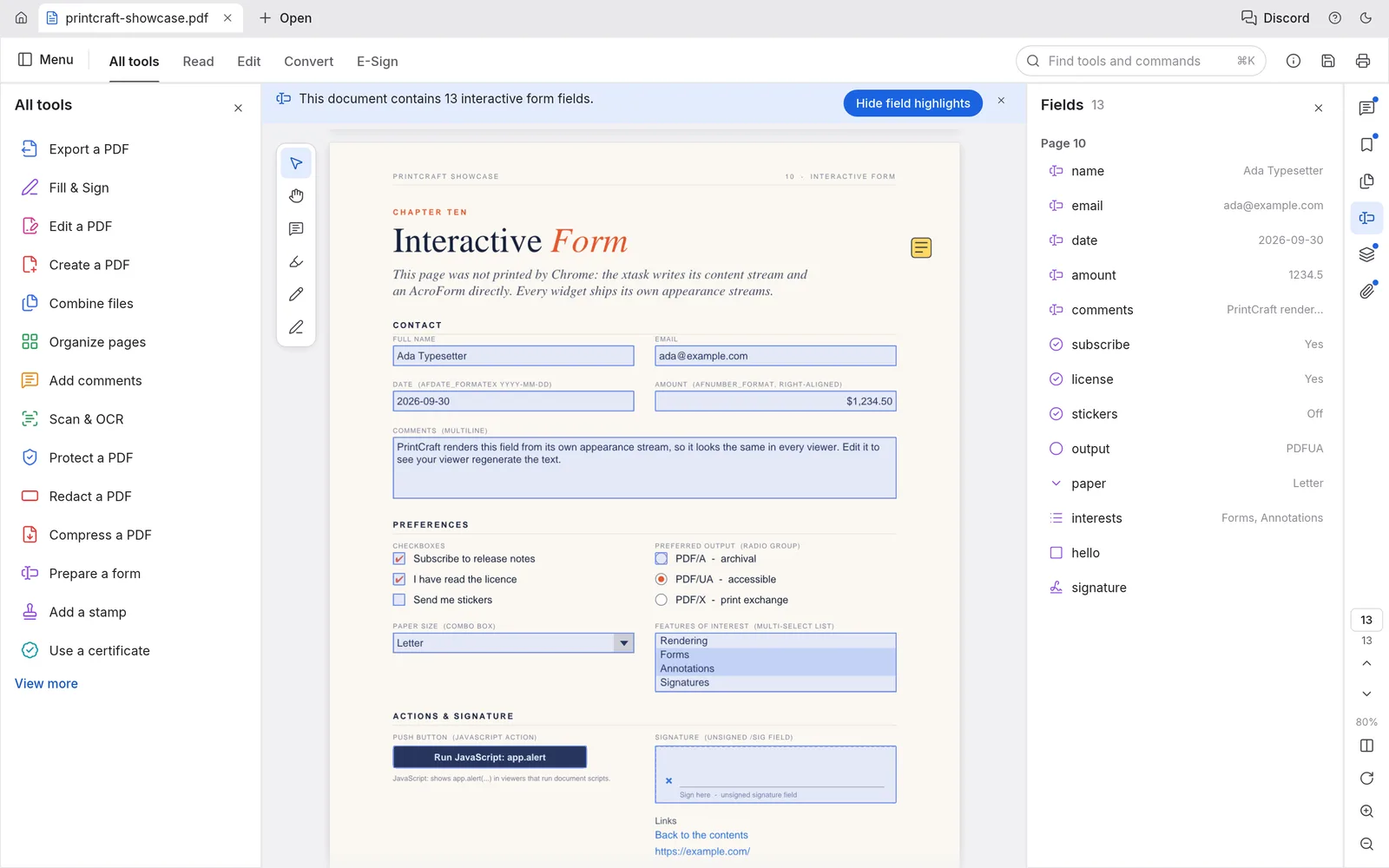
- Find the fields. If the document has interactive fields, a banner says how many; click Highlight fields to see them all. The Form fields panel lists every field with its current value.
- Fill them in. Click a text field and type, tick checkboxes and radio buttons, pick from lists. Tab moves to the next field.
- Made a mess? Menu › Edit › Clear form empties every field, and Ctrl/⌘+Z undoes one step at a time.
Fill a flat PDF with Fill & Sign
Scanned forms and PDFs made from Word documents usually have no fields. Open Fill & Sign from the All tools list (or press Ctrl/⌘+K and type “fill”), then:
- Add text anywhere on the page: names, addresses, amounts.
- Mark boxes with a checkmark ✓, cross ✕, dot ● or line ─.
- Add today’s date in the format set in Preferences › Date format.
Each mark is an annotation, so you can move it, delete it or undo it like any comment.
How to sign a PDF online
- In Fill & Sign, choose Sign (or Initials). The first time, PdfCraft asks you to create one.
- Draw it with the mouse or trackpad, Type your name to set it in a script font, or use an Image of your signature (PNG or JPEG, up to 4 MB).
- Click on the page to place it, then drag to move or resize. Image signatures keep their proportions at the corners.
- Save with Menu › File › Save (Ctrl/⌘+S). The signed PDF downloads to your computer.
Your signature is remembered in this browser for the next document. Change or remove it from the Fill & Sign tools.
Fill & Sign adds a visible signature, not a certificate-based digital signature. If a document needs a digital ID (PKCS #12), use the desktop app: the browser version can’t sign with a certificate.
Before you send it
- Check every page in Read mode (Ctrl/⌘+H on Windows and Linux, ⌃⌘H on macOS) or two-page view.
- Hide what the recipient shouldn’t see with redaction, which removes the text underneath rather than covering it.
- Lock it with a password with Menu › File › Protect using password….
- Combining it with other documents? See how to merge PDFs without uploading them.
- Long contract? Ask the Chat with PDF panel for the deadlines and amounts before you sign.
FAQ
Is a Fill & Sign signature legally binding?
It is a visible signature mark, like signing a printout and scanning it. Many forms and agreements accept that; some (government filings, certain contracts) require a certificate-based digital signature or a specific e-signature service. Check with whoever receives the document. Certificate signatures need the PdfCraft desktop app.
Where is my saved signature kept?
In your browser’s storage on this device, with PdfCraft’s other preferences, so it is ready next time. It is never sent to pdfcraft.run. Remove it from the Fill & Sign tools (remove saved signature) whenever you like.
Can someone change what I typed after I send the PDF?
Fill & Sign marks are saved as annotations, which keeps them editable. To bake them into the page instead, turn on flattening of Fill & Sign marks in Preferences before you save. Form fields can be flattened too.
The form has no fields to click. Can I still fill it?
Yes. That is what Fill & Sign is for: type text anywhere on the page and add checkmarks, crosses, dots, lines and dates where the boxes are.