Steps to combine PDFs
- Open the editor at pdfcraft.run/editor. The first load downloads the app; later visits open from cache.
- Choose Combine files. It is in the All tools list on the left, under Menu › File › Combine files…, or press Ctrl/⌘+K and type “combine”. A Combine files tab opens.
- Add the PDFs with Add files… (you can select several at once), or drag them from your desktop onto the tab. Add open documents brings in files you already have open.
- Set the order. Files are combined from top to bottom. Drag rows, use Move up and Move down, or click a column heading to sort by name, pages, size or date. Every change to the list can be undone.
- Take only some pages if you like: type a range such as
1-3, 6in a file’s Pages box. Leave it empty to take every page. - Click Combine. The result opens as a new document named Combined.pdf. Check it, then use Menu › File › Save (Ctrl/⌘+S) to download it.
What a merge keeps
- Every page renders exactly as in its source file.
- Each file gets a bookmark, with its own bookmarks nested underneath, so a long combined PDF stays easy to navigate.
- Links and named destinations are rewired to the copied pages.
- Form fields stay interactive, layers keep their on/off defaults, and attachments come along.
Reorder, rotate or remove pages after merging
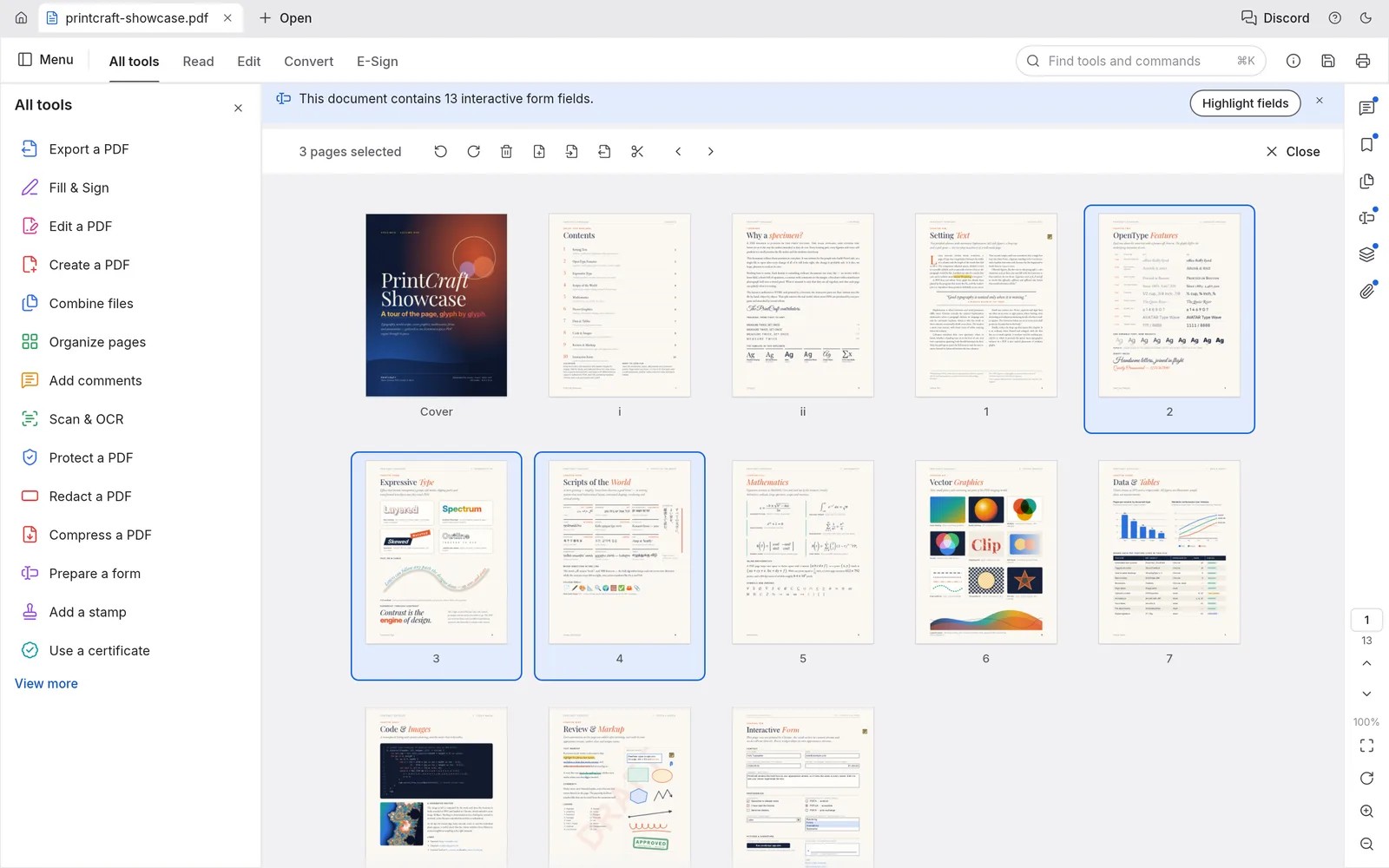
Open Menu › Pages › Organize pages to see every page as a thumbnail. Select pages with click, Ctrl/⌘-click or Shift-click, then rotate, delete, duplicate or move them, insert a blank page, or insert pages from another file. Undo works on all of it, even after you save.
How to split a PDF or extract pages
- Menu › Pages › Extract pages… copies the pages you selected into a new document, or each one into its own file, and can delete them from the original.
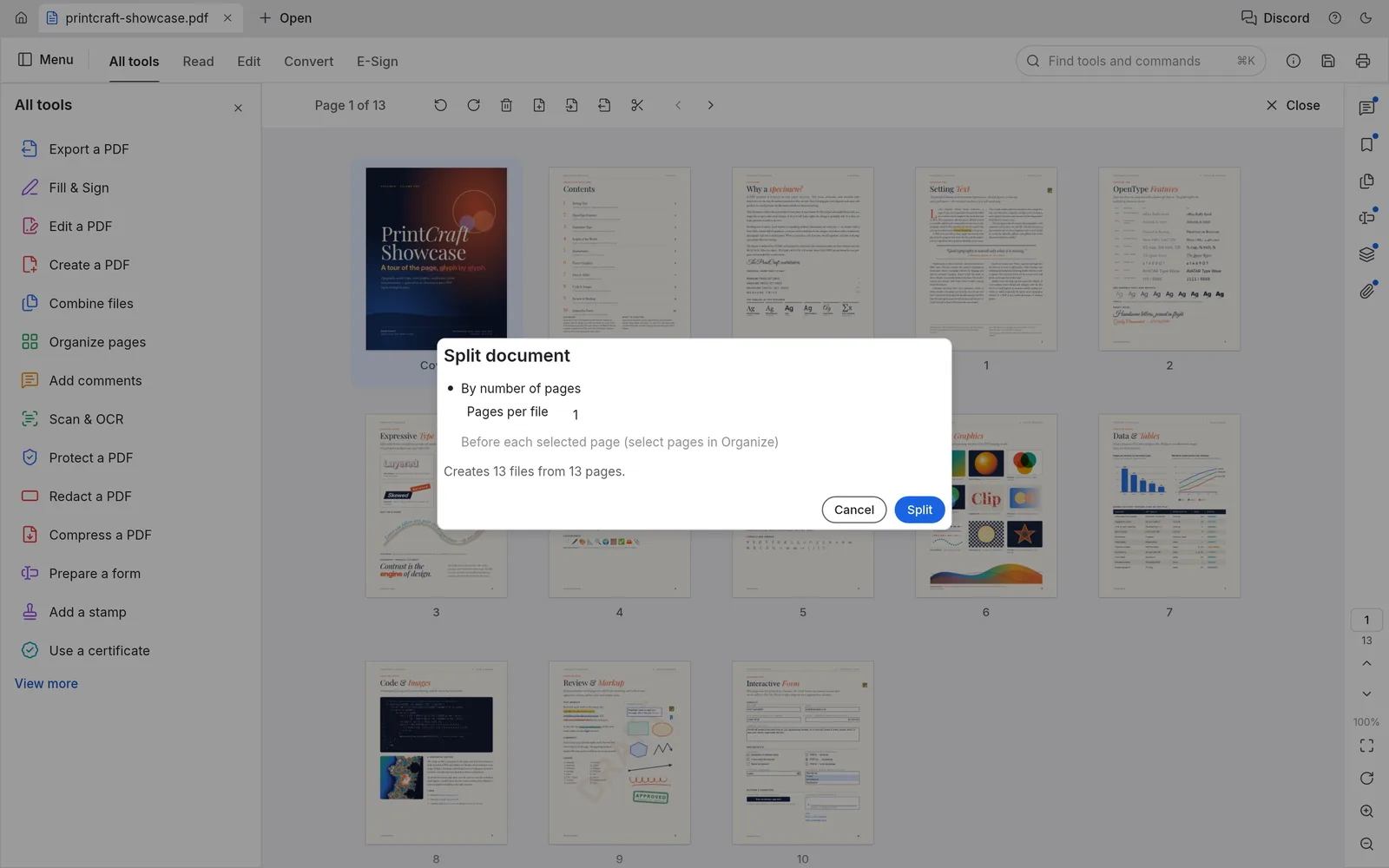
- Menu › Pages › Split document… cuts the PDF every n pages, by file size, at each top-level bookmark, or before the pages you select. In the browser each part downloads as its own file.
Tips
- Save before closing the tab. The browser version has no autosave; it does warn you before you leave with unsaved changes.
- Shrink the result with Menu › File › Reduce file size… if it is too big to email.
- Need a summary of the merged file? Save it, then ask the Chat with PDF panel.
- Many files every week?
pdfcraft-cli combine a.pdf b.pdf --out combined.pdfdoes the same from a script; see the desktop downloads.
FAQ
Are my PDFs uploaded when I merge them here?
No. PdfCraft reads the files in your browser, combines them on your device and saves the result as a download. Nothing about the documents reaches pdfcraft.run’s servers.
Is there a limit on files or pages?
We set none. Combine files takes any number of PDFs; the practical limit is your computer’s memory and the browser. For hundreds of large files, the desktop app or pdfcraft-cli is more comfortable.
Can I merge password-protected PDFs?
Yes. Enter the password in the Combine files list. A file whose permissions forbid copying pages needs its permissions (owner) password. The combined file does not keep the original files’ security settings, so protect it again with Menu › File › Protect using password if you need to.
Can I combine images with PDFs?
Combine files takes PDFs. Open or drop each image in PdfCraft first (PNG, JPEG, TIFF, GIF, BMP and JPEG 2000 convert to PDF as they open), then choose Add open documents in Combine files.