Updated October 14, 2026. Written for PdfCraft 0.7.1 (what changed since).
Nothing here costs money or needs an account, and the file stays on your computer: the editor runs inside the tab and Save downloads the result. The same app is also a free desktop download for Windows, macOS and Linux if you would rather not work in a browser.
What you can change, and how well it works
| You want to | Tool in PdfCraft | How well it works in the browser |
|---|---|---|
| Fix a typo or swap a word | Edit text & images | Fine for short fixes in Latin-script paragraphs; the font may be substituted |
| Add a sentence, a name, an amount | Add text | Works well, including Arabic and Thai |
| Comment, highlight, strike out | Comment tools | Works well, with replies and colours |
| Move, crop, rotate or flip a picture | Edit text & images | Works |
| Add or replace a picture | Edit text & images | Desktop app only for now |
| Reorder, rotate, delete or insert pages | Organize pages | Works well |
| Header, footer, watermark, links | Add content tools | Works |
| Fill a form, sign it | Form fields, Fill & Sign | Works well (fill and sign guide) |
Every tool is also in the command palette: press Ctrl/⌘+K and type its name. That is the fastest way to find anything in the steps below.
Fix a typo or change a line of existing text
- Open the PDF at pdfcraft.run/editor: drag it onto the window or click Open.
- Start Edit text & images (Ctrl/⌘+K, then "edit text"). The text on the page becomes editable blocks.
- Click into the paragraph and type. Bold, italic, alignment, line spacing, character spacing and horizontal scale are in the formatting controls.
- Zoom in and compare the edited line with the lines around it before you save.
Why the font sometimes changes: most PDFs embed only the letters the document actually uses. If you type a letter the original never contained, that embedded font can't draw it, and PdfCraft has to substitute another font. A one-word fix usually reuses letters that are already there; a new sentence often doesn't.
Short fixes work in Latin-script paragraphs. Editing existing Chinese, Japanese, Korean and right-to-left text is still unreliable, and so are long rewrites in any script. For anything longer than a line, two other routes work better. You can cover the old line with a white rectangle comment and put new text on top with Add text, which is fine for a printout, though the old words are still in the file. Or, if you have the Word or Pages file the PDF came from, edit that and export a new PDF.
Covering text with a box does not remove it. Anyone can still select and copy it. To delete something for good, see how to redact a PDF.
Add new text, notes and highlights
Add text puts a new text box wherever you click. Each click starts a new box; drag a box to move it, drag a corner to resize it, double-click to change the words. It shapes Arabic and Thai text and lays out right-to-left lines in the right order.
For review work, the comment tools cover sticky notes, highlight, underline, strikethrough, text boxes, freehand drawing, lines, arrows, rectangles and ovals. Comments can carry replies and a review status, so a PDF can go back and forth between two people without anyone retyping feedback in an email.
Move, crop or rotate images
In Edit text & images, click a picture to select it. You can drag it, rotate it, flip it horizontally or vertically, and crop it by trimming a percentage from each side. In the browser you can't yet add a new picture to the page or replace one: the web build is waiting for an image file picker, and the desktop app does both today.
Change the pages
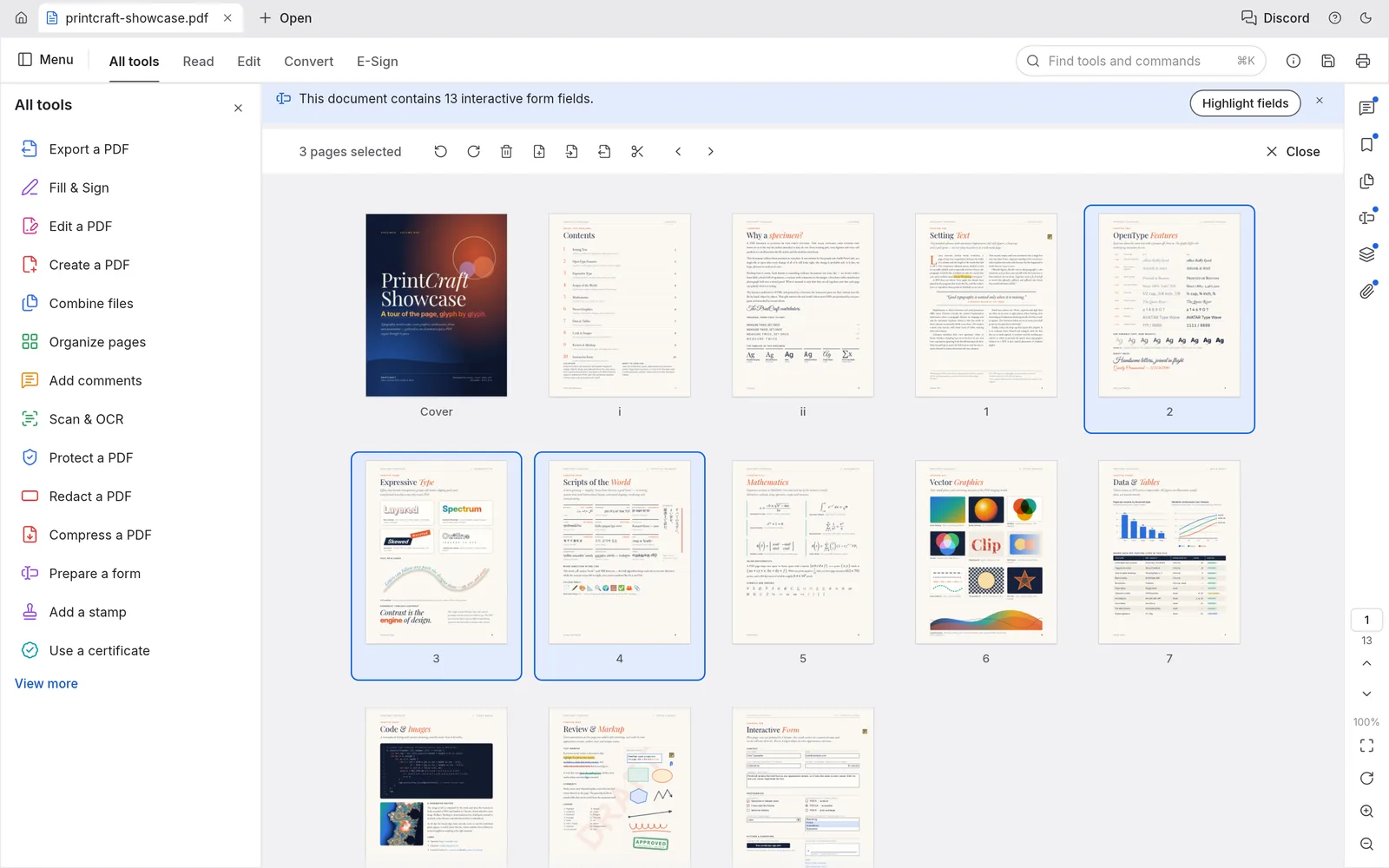
Organize pages shows every page as a thumbnail. Select pages with click, Ctrl/⌘-click or Shift-click, then rotate, delete, move, insert a blank page or insert pages from another PDF. To combine files or cut one into parts, follow the merge and split guide.
Add a header, footer, watermark or links
The Add content group in All tools holds Header and footer (left, centre and right text, with page numbers and dates you can insert), Watermark, Link and Bates numbering for legal page stamps. Headers, footers and watermarks can be updated or removed later as one item, so a watermark you added on Monday doesn't have to be scraped off page by page on Friday. A page background is not in this release.
Save, then check the copy
Menu › File › Save (Ctrl/⌘+S) downloads the edited PDF. The browser version has no autosave, so save before you close the tab; the page warns you if you try to leave with unsaved changes. Undo keeps working after a save, which makes it safe to save early.
Open the downloaded file in another viewer, such as your browser's built-in PDF viewer, and look at the pages you touched. Edited text should be selectable and searchable, and added text boxes should sit where you put them. If the PDF is going somewhere it must look right, check it on the device the recipient is likely to use.
When a free editor is the wrong tool
If the job is rewriting paragraphs, PdfCraft will fight you, and editing the source document is faster. If you don't have it and this is routine work, Acrobat Standard costs US$14.99 a month on an annual plan and includes editing text and images. For everything else in the table above, the free route does the job. On a Mac, Preview already handles part of it; here is what it can and can't do. For a wider look at free replacements for Adobe's apps, see open-source Adobe alternatives.
Start with the smallest change you need, save a copy under a new name, and keep the original until the edited one has been checked.